> ## Documentation Index
> Fetch the complete documentation index at: https://docs.winningvariant.com/llms.txt
> Use this file to discover all available pages before exploring further.
# Installation
> Install and configure the Winning Variant Snowflake Native App.
The Winning Variant app is "by request", meaning that we must explicitly grant customers access to the app. If you're interested in what we have to offer, please click "Request" in the marketplace listing or [reach out directly](https://www.winningvariant.com/#get-started).
## 1. Set up an event table
An event table is where all app logs will be saved. It's important to have this configured properly *before* installing the app to ensure logs are routed correctly.
[Follow the instructions on Snowflake's site](https://docs.snowflake.com/en/developer-guide/logging-tracing/event-table-setting-up#create-an-event-table)
## 2. Install the app
The app will need to be made available to your account prior to installation. Once available, you can find the app **Winning Variant Experimentation**. Click the "Get" button to begin installation.
Installation may take a few minutes. When complete, you'll be able to see the app listed under **Data Products > Apps** in Snowsight.
## 3. Grant app permissions
1. Find the **Winning Variant** app under **Data Products > Apps** in Snowsight
2. Click the app to be taken to the activation screen.
3. Review the requested permissions listed on the screen. When you're ready to proceed, click **Grant**.
4. Once granted, an **Activate** button will appear -- click this to finalize setup.
5. After grants are finalized, you will be taken to the Winning Variant App Management screen.
In order to view the App Management streamlit app, you must be the app owner or be granted a role mapped to the `ADMIN` application role.
## 4. Map roles
Winning Variant creates a [set of application roles](/snowflake-app-details#application-roles) that can be used to manage access to the app's functionality. In order to use these, they must be mapped to roles that exist on your account. You can use an existing role or create a new one.
The following example creates a new account role `experiment_editor` and maps it to the `editor` application role exposed by the app:
```sql theme={null}
USE ;
-- Create a new role on the account
CREATE ROLE experiment_editor;
-- Map this role to the Winning Variant `editor` role
GRANT APPLICATION ROLE editor TO ROLE experiment_editor;
```
You can also map roles visually via the streamlit app by clicking into the app and clicking "Manage Access" in the top right of the page.
## 5. Wait for services to start
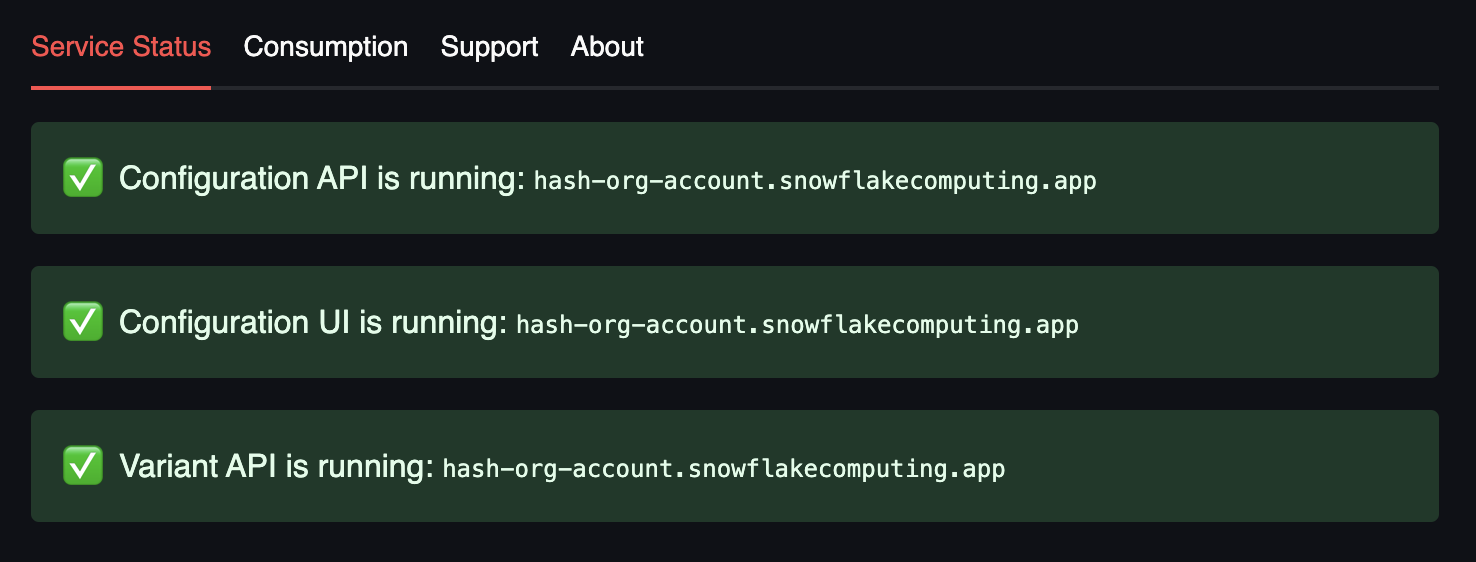
Behind the scenes, the app is creating a compute pool, warehouses, and services. The status will be displayed on the streamlit dashboard. This process will take at least a few minutes. Refresh the page to monitor status changes.
When all services are ready, all will turn green and show the public URLs for each service.
 ## 6. Dive in!
Now that the Winning Variant native app is running, you can start using it immediately.
### Manage Experimentation
Create labs, subject types, and experiments in your new experimentation engine.
Learn about the different kinds of resources that can be managed.
How to create and edit resources from within Snowflake.
### Experimention Data
Learn about the raw experimentation data you can not activate for better, deeper analysis.
What an assignment is and how you can use it.
Learn how to access and query assignment data.
## 6. Dive in!
Now that the Winning Variant native app is running, you can start using it immediately.
### Manage Experimentation
Create labs, subject types, and experiments in your new experimentation engine.
Learn about the different kinds of resources that can be managed.
How to create and edit resources from within Snowflake.
### Experimention Data
Learn about the raw experimentation data you can not activate for better, deeper analysis.
What an assignment is and how you can use it.
Learn how to access and query assignment data.